
If you’re building services in AWS, and want to ensure you have a robust backup and disaster recovery plan, then you’re likely going to explore using the AWS Backup service. It covers a wide array of AWS services, and can also be used for on premise solutions outside of the cloud, but there is a lot to account for, especially as you move beyond the basics. This post will highlight some of the things to be aware of, and help you get set up in a multi-account AWS Organization.
Delegate Administrator Account
There are 2 parts to be aware of when creating a delegate administrator, one is straightforward and the other is a little more complicated.
We’ll want to give an AWS account, outside of the management account, delegate administrator privileges for the AWS Backup service. This will provide a global view of the service across the AWS Organization, so that you don’t need to log into each account to observe what is happening with your backups, and therefore avoid accessing the management account directly, which is best practice.
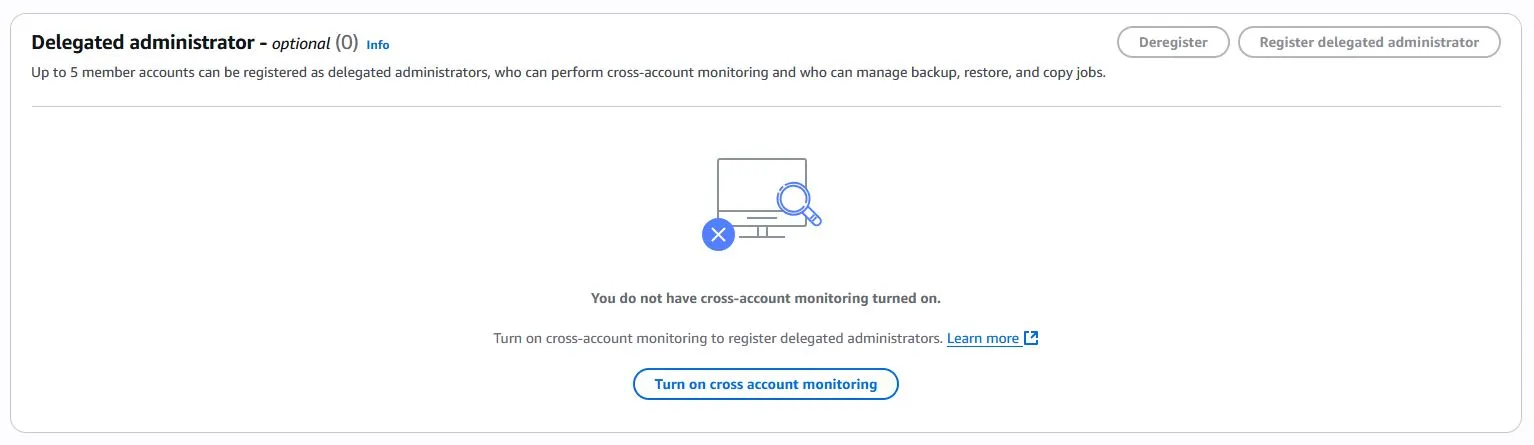
To achieve this all we need to do is turn on cross account monitoring, then we can select an account to be registered as a delegate administrator. As you can see from the image above, you can have up to 5 delegate administrators for the AWS Backup service, but you’re only likely going to use 1. These settings can also be configured using infrastructure as code or Control Tower settings if you’re using those to manage your AWS estate.
When using AWS Backup we can use a Backup Policy to configure what happens with backups across our accounts or Organizational Units (OUs), and these policies are pushed out the AWS Organizations service and not AWS Backup itself. This means we also need a resource policy setting up in our Management account, to facilitate the delegate administration of the backup policies. Backup policies allow for managing backups across multi-account setups, if you’re deploying to a single account you can simply deploy individual plans direct to your account.
Here’s an example resource policy that can be deployed within the Management account, which will then facilitate deploying backup policies through our secondary account. I will refrain from making a recommendation on which account you should use as your delegate administrator account, as it depends on your setup, but the following is an example of how we might achieve the desired result.
{
  "Version": "2012-10-17",
  "Statement": [
    {
      "Sid": "AllowOrganizationsRead",
      "Effect": "Allow",
      "Principal": {
        "AWS": "arn:aws:iam::12345678910:root"
      },
      "Action": [
        "organizations:List*",
        "organizations:Describe*"
      ],
      "Resource": "*"
    },
    {
      "Sid": "AllowBackupPolicyModification",
      "Effect": "Allow",
      "Principal": {
        "AWS": "arn:aws:iam::12345678910:root"
      },
      "Action": [
        "organizations:CreatePolicy",
        "organizations:UpdatePolicy",
        "organizations:DescribePolicy",
        "organizations:DeletePolicy"
      ],
      "Resource": "arn:aws:organizations::10987654321:policy/*/backup_policy/*",
      "Condition": {
        "StringEquals": {
          "organizations:PolicyType": "BACKUP_POLICY"
        }
      }
    },
    {
      "Sid": "AllowBackupPolicyAttachmentAndDetachment",
      "Effect": "Allow",
      "Principal": {
        "AWS": "arn:aws:iam::12345678910:root"
      },
      "Action": [
        "organizations:AttachPolicy",
        "organizations:DetachPolicy"
      ],
      "Resource": [
        "arn:aws:organizations::10987654321:ou/*",
        "arn:aws:organizations::10987654321:account/*",
        "arn:aws:organizations::10987654321:root/*"
      ],
      "Condition": {
        "StringEquals": {
          "organizations:PolicyType": "BACKUP_POLICY"
        }
      }
    }
  ]
}
In the above example 10987654321 is the Management account, and 12345678910 is the account we’re providing delegate administrator access to manage backup policies within our AWS Organization.
The 3 statements contained within the example resource policy are:
- AllowOrganizationsRead - Allows the delegate administrator to read the policies within the organization.
- AllowBackupPolicyModification - Provides Create, Read, Update, and Delete (CRUD) operations for backup policies within the organization.
- AllowBackupPolicyAttachmentAndDetachment - Allows the delegate administrator to attach and detach backup policies from the root OU, child OUs, and specific accounts.
What is a backup policy?
Now we know how we can deploy a backup policy via a delegate administrator, let’s take a look at what a backup policy is and how it’s used. We can deploy multiple back policies, and they can be attached to an AWS account, the root OU, or a child OU within your AWS Organization.
Backup policies allow you to define robust configuration for backups across your multi-account cloud estate, instead of having to individually deploy them to each account - although you can do that too where it makes sense. These policies cannot be amended by accounts they are deployed to outside of the Management and delegate administrator accounts, which makes them a great tool to be leveraged for compliance requirements.
A backup policy consists of the usual name and description, with an array of backup plans, which will all be made available and applied where appropriate within the accounts of OUs you attach the backup policy to.
What is a backup plan?
The backup plan is where you define the rules for your backups, they contain the following configuration options:
- Target backup vault name - where the backup will be sent to once it has completed, within the same account.
- Scheduled expression - for backups that run on a schedule these will be defined through a CRON command.
- Start backup window minutes - defines the maximum window before the backup should begin.
- Complete backup window minutes - the maximum amount of time a backup can run for before timing out.
- Enable continuous backup - a boolean option for point in time backups, which can be used for point in time recovery, instead of snapshot backups.
- Lifecycle - how long you want to keep the backups for, and whether they are sent to cold storage.
- Copy actions - define a secondary backup location, where backups are copied to a vault in another account for a more robust backup setup. This is useful if you want to use a cloud version of the 3-2-1-1-0 strategy for backups.
- Regions - define the regions in which the backup plan is applicable, you may want different configuration based on regulatory requirements within specific regions.
- Selections - an optional setting, which allows the enrollment of a resource into the backup plan via tags, or you can specify the type of resources the backup plan is applicable to.
You can read more about the various options here: https://docs.aws.amazon.com/aws-backup/latest/devguide/plan-options-and-configuration.html
Example backup policy with a backup plan
Let’s take a look at a simple example backup policy with a single backup plan inside, which takes a backup of S3 Buckets every night at midnight in the eu-west-1 region.
{
  "plans": {
    "S3_Backup_Plan": {
      "regions": {
        "@@assign": [
          "eu-west-1"
        ]
      },
      "rules": {
        "NightlyBackupRule": {
          "schedule_expression": {
            "@@assign": "cron(0 0 * * ? *)"
          },
          "start_backup_window_minutes": {
            "@@assign": "480"
          },
          "complete_backup_window_minutes": {
            "@@assign": "10080"
          },
          "lifecycle": {
            "delete_after_days": {
              "@@assign": "90"
            },
            "opt_in_to_archive_for_supported_resources": {
              "@@assign": "false"
            }
          },
          "target_backup_vault_name": {
            "@@assign": "BackupMcBackupFace"
          }
        }
      },
      "selections": {
        "resources": {
          "resource_types": {
            "iam_role_arn": {
              "@@assign": "arn:aws:iam::$account:role/BackupRole"
            },
            "resource_types": {
              "@@assign": [
                "S3"
              ]
            }
          }
        }
      }
    }
  }
}
This can be assigned to an OU and distributed through AWS Organizations, which allows for a single policy to be applied across multiple accounts. In a single account architecture we would only need to push the backup plan itself to the individual account, but backup policies come into their own in multi-account organizations.
Permissions required by the AWS Backup service
In order for the AWS Backup service to carry out backups, it needs the relevant permissions to do so. If you are configuring AWS Backup manually through ClickOps then a default AWS Managed service role is created for you to use within each account. However, when it comes to deploying your resources through infrastructure as code, the service role does not exist for your initial deployment, so you’ll have to create it yourself either through the AWS CLI or by creating your own custom IAM Role.
The default service role which is created for you is called AWSBackupDefaultServiceRole, and it has 2 policies attached, AWSBackupServiceRolePolicyForBackup and AWSBackupServiceRolePolicyForRestore.
For whatever reason, these policies do not include permissions for S3, you will need to manually add AWSBackupServiceRolePolicyForS3Backup and AWSBackupServiceRolePolicyForS3Restore which are the AWS Managed policies for S3 backup permissions.
Additional permissions for Copy Actions
Copy Actions are an optional feature of backup plans, which allow you to generate a copy of the backup to be stored in a secondary location. This is usually a separate account, often one dedicated to centralising backups in a more locked down account.
This is where IAM permissions get a little more complicated, especially when the secondary backup location is in another account, as the KMS key used to encrypt backups within the secondary account needs to be made accessible to the IAM role used by the AWS Backup service within the source account.
When using infrastructure as code it’s simply a list of principals to add to the KMS key policy for the secondary backup vault encryption key, but through ClickOps it would soon get too complicated to manage.
You will also need to add a resource policy to the secondary backup vault, which allows the backup role from your other account to copy backups across.
Not all services are fully managed
One of the main pain points I’ve found working with AWS Backup is that there isn’t native support for all AWS resources, in fact there are only a handful which are classed as fully-managed. For those few resources which are fully-managed the level of configuration to get up and running is minimal and it’s a great experience working with AWS Backup, but for the rest it can be quite cumbersome to setup and maintain across a large organization. You really need to incorporate infrastructure as code and a simple deployment strategy to build a successful backup process for your business.
Here you can find a full list of what features of AWS Backup are supported by each AWS service: https://docs.aws.amazon.com/aws-backup/latest/devguide/backup-feature-availability.html
When it comes to onboarding data sources and getting engineering teams using AWS Backup, start with the fully-managed service types as a self-service option, and work closely with teams to build exemplars for the other resource types. As there is a barrier to entry, you need to provide a level of support upfront, but once the necessary configuration is in place for the other resource types it can become a fully self-service platform for backups.
Using KMS CMKs for non-fully managed services
If you require cross-account backups, then you will have to use KMS CMKs. There is a limitation for non-fully-managed services, where AWS managed KMS keys cannot be used for cross account copy jobs within a backup plan. This is because AWS managed KMS keys are immutable, and so we cannot update the key policy to allow cross-account actions.
When using fully-managed resource types this is taken care of by the AWS Backup service, but for everything else we need to use KMS CMKs and manage those ourselves.
To allow for cross-account backups through Copy Actions we need to give the backup role access to the KMS CMK within the secondary account, which may look something like this:
{
  "Version": "2012-10-17",
  "Id": "Example KMS CMK key policy for cross-account copy actions using AWS Backup",
  "Statement": [
    {
      "Sid": "Allow use of the key",
      "Effect": "Allow",
      "Principal": {
        "AWS": [
          "arn:aws:iam::123456789012:role/BackupRole",
        ]
      },
      "Action": [
        "kms:Encrypt",
        "kms:Decrypt",
        "kms:ReEncrypt*",
        "kms:GenerateDataKey*",
        "kms:DescribeKey"
      ],
      "Resource": "*"
    }
  ]
}
There will be other statements within your key policy, but the one in the example above account number 12345678910 is the account where the backups are taken, and it can now access the KMS CMK key used by the secondary backup vault for encryption during Copy Actions.
Recovering from a backup
There are plenty of options for automated testing of backups, and restoring a resource based on triggers, and I’ll probably write another post centered around that topic. For now recovery from a backup can be performed really simply through ClickOps.
Within the account where the backups are taken or a secondary backup vault, there is a button to restore a backup. There will be some configuration depending on the resource type, but AWS will take care of the rest. The duration a restore takes is dependent on the size and type of resource.
Multi-account view of backups and copy actions
Once you have some backups up and running, you can navigate to the AWS Backup service within your delegate administrator account and view what’s happening across your accounts.
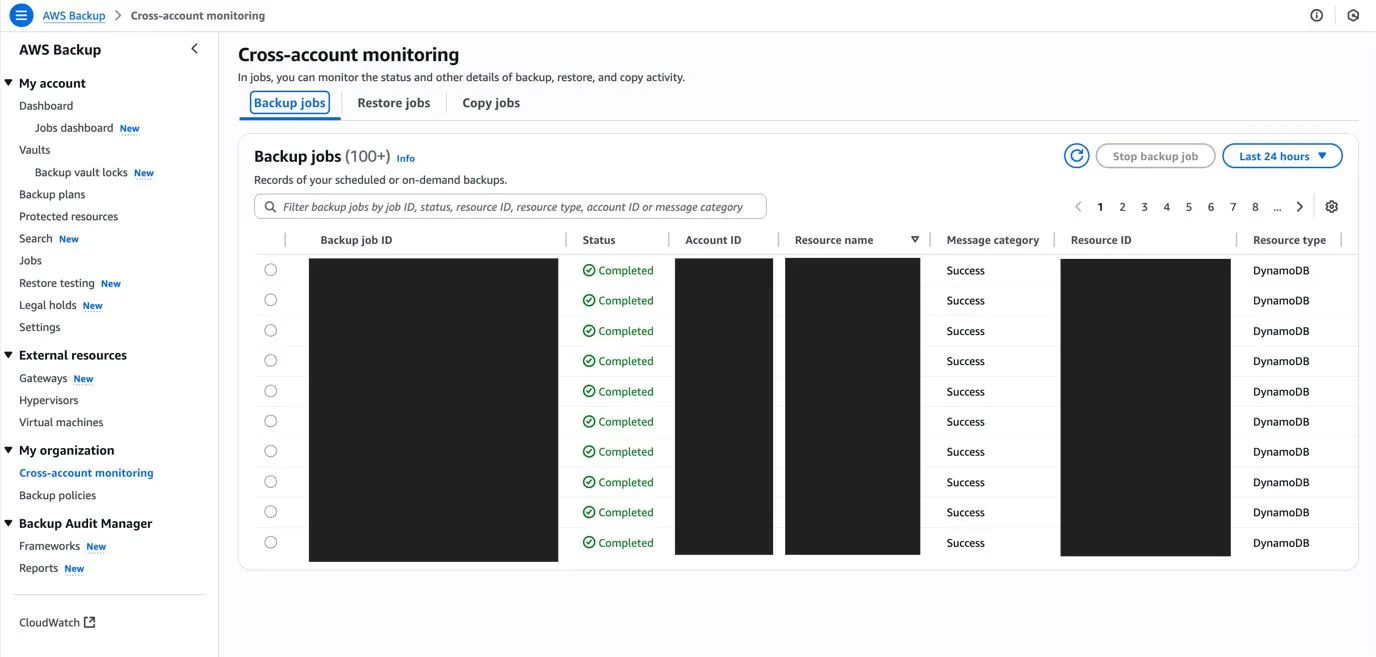
In the Cross-account Monitoring section you will find a table with 3 sections for the Backups, Restores, and Copy Jobs which have been performed. You’ll be able to see the status of each, and setup alerting for when a backup task fails or even to provide notification of a backup succeeding.
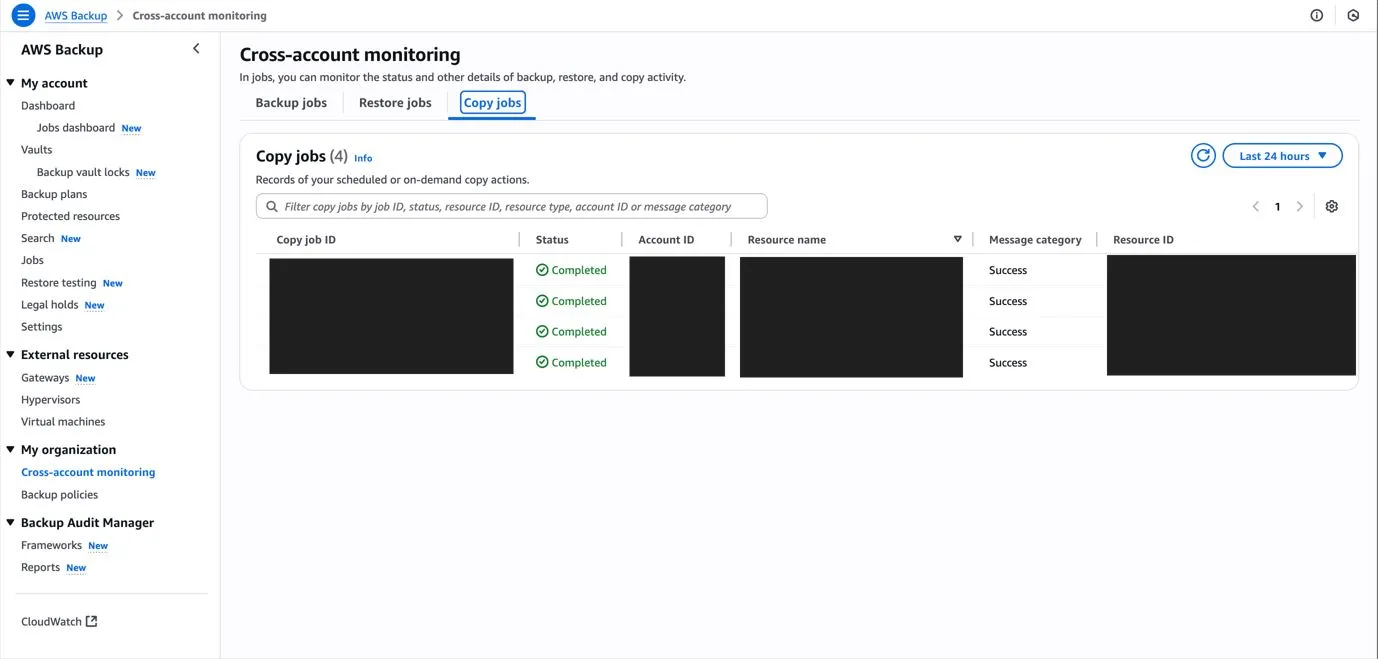
This dashboard is great for providing an overview of usage across your accounts, and how they’re performing, especially if you operate a self-service approach.
Vault Locks
A feature of AWS Backup vaults that’s worth mentioning specifically is the capability to add a vault lock.
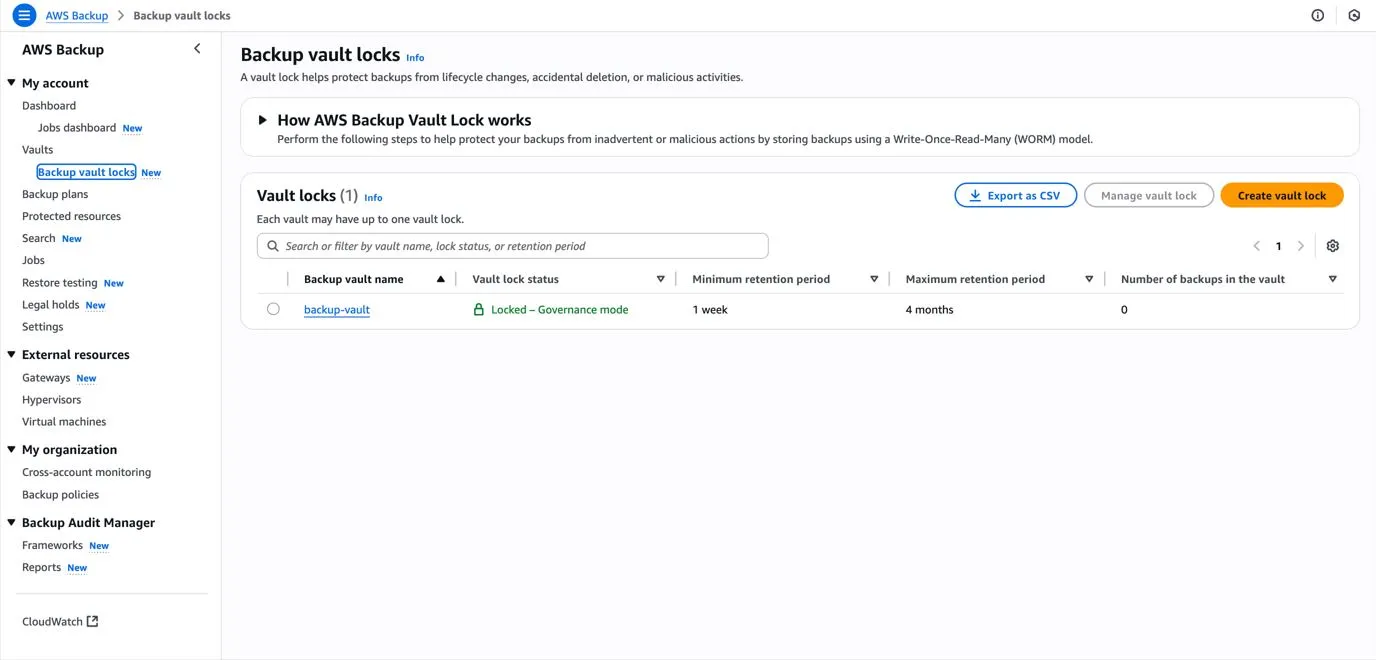
The management account is the key to the kingdom in AWS, and if the management account were to be compromised, then simply deleting the backups would undo all our good work. That’s where vault locks come in. They allow us to configure a period of immutability for our backups, so even if there was full account takeover, your backups would survive.
The two vault lock options are:
- Governance Lock: any backups are immutable once created for the defined lifecycle of that backup, but the lock itself can be removed.
- Compliance Lock: any backups are immutable once created for the defined lifecycle of that backup, and after a grace period the compliance lock can never be removed. I wrote about the potential pitfalls of such a policy here: https://chrisdunne.com/post/using-aws-backup-vault-lock-as-an-immutable-denial-of-wallet-attack
Final thoughts
The AWS Backup service, for all but the most simple of backup tasks, is not a service that can be used without investing time and effort in learning about all the little quirks and complexities with configuring the service. There are possibly much easier third-party platforms you can leverage for backups of your AWS resource, especially if you only care about having something to spin up in the event of a disaster.
That being said, it’s quite a robust service, and can account for whatever your unique use case may be. It allows you to adhere to the 3-2-1-1-0 model, and has integrations for automating most tasks, it just requires a little time and knowledge to get there.
The capability to define your backup policies and plans as code, have them peer reviewed, and go through the same quality gates as the rest of your code makes it a developer friendly tool. The option for teams to then self-serve through tagging their resources is awesome.
You could have data classification tags on your resources, which map to pre-configured backup plans, which adhere to whatever your regulatory and compliance requirements are.
If all resource types were to become fully-managed within AWS Backup it would be a no-brainer to adopt within your organization, until then try and understand what’s required for your setup and whether it’s worth the time investment.
Reference Documents
https://docs.aws.amazon.com/organizations/latest/userguide/orgs_manage_policies_backup_syntax.html